
- 1. Registro y autorización del usuario
- 2. Administración de los datos de usuario y la empresa
- 3. Servicios principales de la web
- 4. Búsqueda y publicación de ofertas de cargas y/o transportes
- 5. Mis ofertas
- 6. Mensajes
- 7. SMS
- 8. Muro
- 9. Catálogo
- 10. Empresas relacionadas
- 11. Conductores temerarios
- 12. Facturas pendientes de pago
- 13. Ayuda para problemas técnicos
- 14. Boletín informativo
1. Registro y autorización del usuario
1.1. ¿Cómo hacer el registro y autorización de una empresa?
Para registrarse en la web haga clic en el botón "Registrarse" en la esquina superior derecha de la página. Rellene los campos del formulario. Los campos que aparecen con un asterisco (*) deben completarse obligatoriamente.
Si un nuevo usuario indica durante el registro que forma parte de su empresa, todos los usuarios registrados de la empresa recibirán un mensaje automático informándole sobre dicho registro. Si el nuevo usuario no trabaja en su empresa, deberá pulsar el bo.
Cuando se haya finalizado el registro, se enviará un SMS, al número de teléfono indicado, con los datos para la autorización. Si no recibe este SMS transcurridos más de 15 minutos, por favor, póngase en contacto con el Administrador.
Si un nuevo usuario indica durante el registro que forma parte de su empresa, todos los usuarios registrados de la empresa recibirán un mensaje automático informándole sobre dicho registro. Si el nuevo usuario no trabaja en su empresa, deberá pulsar el botón "No trabaja" y se le restringirá el acceso.
1.2. ¿Cómo recuperar la contraseña?
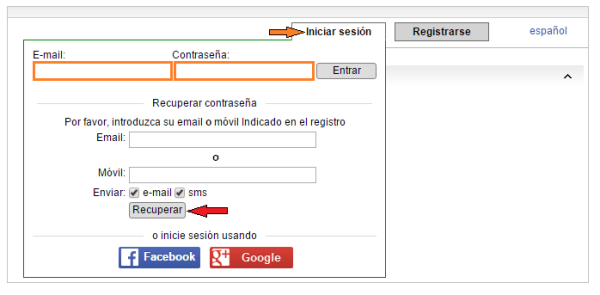
Haga clic en el botón "Log In" en la esquina superior derecha de la página. Debajo del botón "Entrar", haga clic en el enlace "¿Olvisdaste la contraseña?". Indique su email y/o número de teléfono introducidos durante el registro. Se le enviará un email y/o SMS con la contraseña. Si no ha recibido ninguna notificación transcurridos 15 minutos, por favor, póngase en contacto con el Administrador.
1.3. ¿Cómo registrar un nuevo usuario?
Para registrarse en la web haga clic en el botón "Registrarse" en la esquina superior derecha de la página. Rellene los campos del formulario. Los campos que aparecen con un asterisco (*) deben completarse obligatoriamente. Si su empresa ya está registrada, después de rellenar el campo "Código de la empresa", la página automáticamente encontrará su empresa y le añadirá como miembro de ella. Después, sólo tendrá que rellenar los campos que se refieren a los datos del usuario.
2. Administración de los datos de usuario y la empresa
2.1. ¿Cómo cambiar la contraseña del usuario?
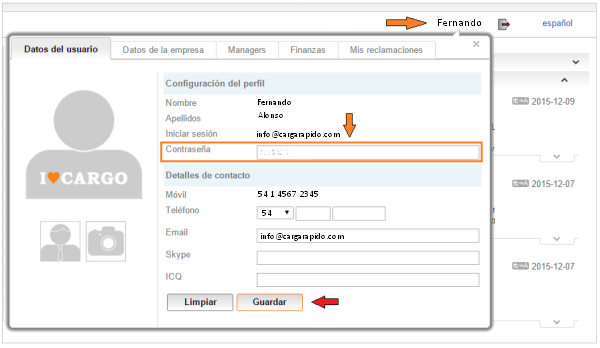
Para cambiar la contraseña, haga clic en su nombre en la esquina superior derecha de la página y en el campo "Datos del usuario" introduzca los cambios que desee realizar. Una vez que ha finalizado, haga clic en el botón "Guardar".
2.2. ¿Cómo cambiar los datos del usuario y de la empresa?
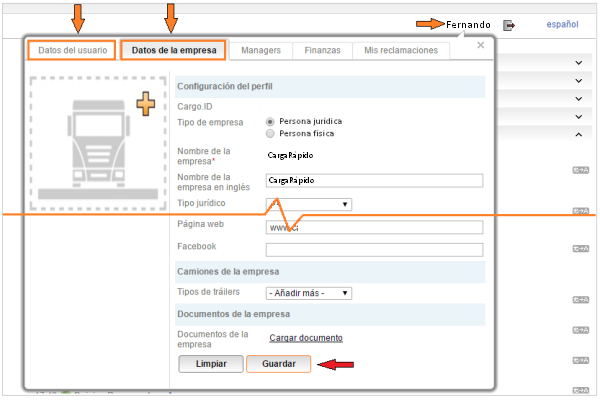
Para cambiar los datos del usuario y/o de la empresa, haga clic en su nombre en la esquina superior derecha. Para editar los datos de usuario haga clic en la pestaña "Datos del usuario". Para cambiar los datos de la empresa haga clic en "Datos de la empresa". Después de haber realizado los cambios haga clic en "Guardar".
Para cambiar:
- nombre
- código de IVA
- nombre y apellidos del usuario
por favor, comuníquese con el Administrador de la web.
2.3. ¿Cómo cargar documentos de la empresa?
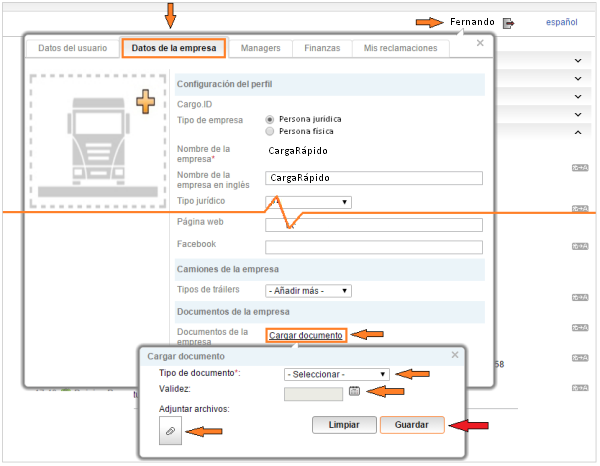
Para subir documentos de la empresa, haga clic en su nombre en la esquina superior derecha, a continuación, en "Datos de la empresa" haga clic en "Cargar documento". En la ventana que se mostrará, rellene los campos necesarios y haga clic en el icono de "Adjuntar archivos" para seleccionar el documento que desea subir. El tamaño máximo del documento es de 3 MB. Después de seleccionar el documento haga clic en el botón "Guardar".
2.4. ¿Dónde buscar las facturas pendientes de mi empresa?
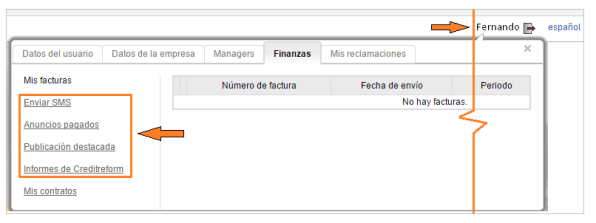
Para buscar las facturas pendientes de su empresa, haga clic en su nombre en la esquina superior derecha y, después, haga clic en "Finanzas". Podrá ver las facturas archivadas y las facturas pendientes de pago. Para pagar una factura, haga clic en el botón "Pagar" y, en la ventana que se abrirá, escoja la forma de pago y vuelva a hacer clic en el botón "Pagar".
2.5. ¿Dónde puedo ver las estadísticas de los SMS, anuncios de pago y publicaciones destacadas?
Para ver las estadísticas de los SMS, anuncios de pago y publicaciones destacadas, haga clic en su nombre en la esquina superior derecha y seleccione la pestaña "Finanzas".
2.6. ¿Dónde puedo buscar la valoración y comentarios sobre mi empresa?
Para saber la valoración y los comentarios sobre su empresa, entre en el "Catálogo" y busque su empresa con el nombre o código. Después acceda a la información de la empresa haciendo clic sobre el nombre de la misma.
2.7. ¿Cómo pasar a ser un cliente de pago?
Para pasar a ser un cliente de pago, haga clic en el enlace "Ser cliente de pago". Seleccione la "Forma de pago" y haga clic en el botón "Enviar".
Puede pagar la factura por utilizar los servicios de la web de la forma más conveniente para usted. Después de recibir el pago, se le abrirá el acceso a los servicios contratados.
3. Servicios principales de la web
3.1. Panel general de cargas y transportes.
En el panel general de cargas y transportes se muestran todos los países en los que en ese momento existen ofertas de cargas y/o transportes. Los países en los que no hay ofertas actuales se encuentran ocultos en la parte inferior de la tabla en la sección "Más países".
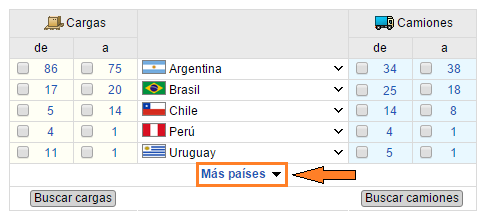
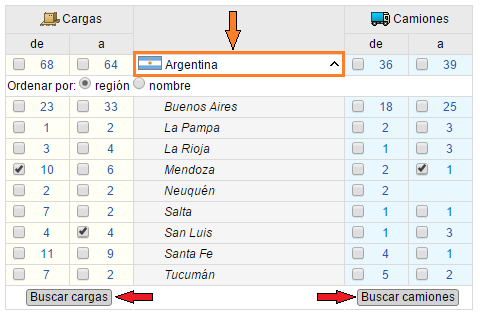
Para mirar en qué regiones del país hay cargas o transportes, haga clic en el nombre del país.
Para buscar cargas/transportes en cada una de las regiones, seleccione la/s casilla/s de la/s región/nes que desea y escoja "De" y/o "A" y haga clic en el botón "Buscar carga" o "Buscar transporte".
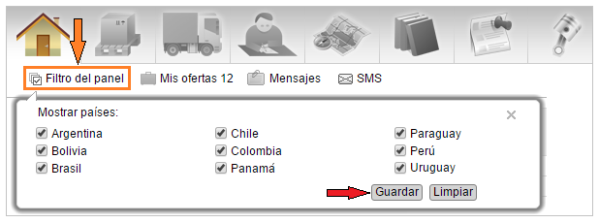
En la configuración del panel, usted puede seleccionar los países que quiere que se muestren en la página principal. Haga clic en el botón "Filtro del panel" en la esquina superior izquierda de la web y en la ventana que se abrirá desmarque los países que no desea ver. A continuación, pulse el botón "Guardar".
3.2. Foro
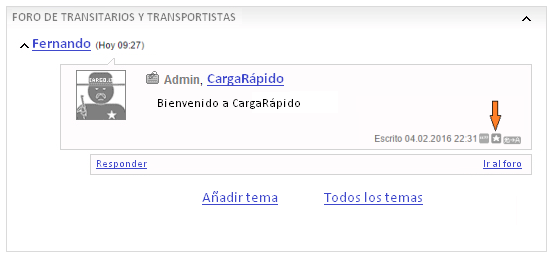
La versión rápida está disponible en todas las páginas de la web. Para acceder a la versión completa, haga clic en "Todos los temas" o "Ir al foro".
Para iniciar un tema en el foro, haga clic en "Añadir tema". Para escribir una respuesta, haga clic en "Responder".
Puede añadir a "Favoritos" aquellos temas que sean interesantes o importantes para usted. Para añadir un tema a "Favoritos", haga clic en "Favoritos".
3.3. Chat
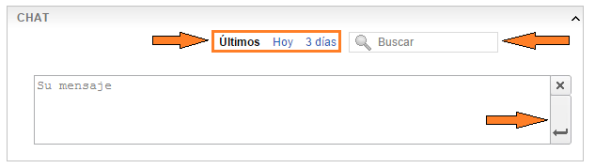
Puede encontrar el chat en cada una de las páginas de la web. Para enviar un mensaje en el chat, introduzca su mensaje en el campo "Su mensaje" y haga clic en el botón introducir indicado con una flecha.
También puede ver los mensajes archivados haciendo clic en los botones "Últimos", "Hoy" o "3 días". Para buscar un mensaje en el archivo, introduzca la frase en el recuadro "Buscar" y se mostrarán las coincidencias.
3.4. Tráfico en las fronteras
En la tabla de "Tráfico en las fronteras", puede ver la última información sobre el tráfico en cada una de las fronteras.
Si tiene información más reciente sobre el tráfico, puede añadirla. Para introducir nueva información, haga clic en "Información completa" y luego haga clic sobre el nombre de la frontera en la que se encuentra. Una vez que haya introducido la información, haga clic en "Guardar".
3.5. Conversor de divisas
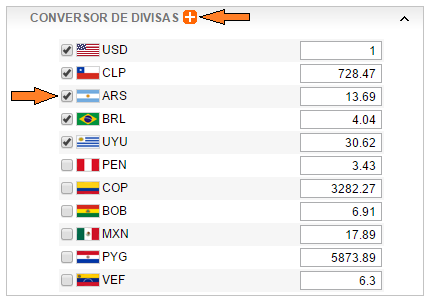
El conversor de divisas le ayudará a pasar rápidamente el valor de una moneda a otra diferente.
Para configurar qué divisas se muestran por defecto y cuáles no, haga clic en el botón "Más" y seleccione las divisas que quiere ver y desmarque en las que no está interesado.
4. Búsqueda y publicación de ofertas de cargas y/o transportes
4.1. Buscar una carga y/o transporte disponible.
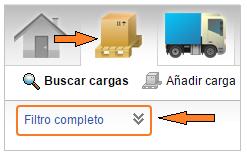
Para empezar la búsqueda, haga clic en el símbolo de "Carga" o "Camiones" en el menú de la parte superior e introduzca la salida y el destino en el que está interesado. También puede hacer esta búsqueda en el panel principal haciendo clic sobre el número de las ofertas existentes.
Para acceder al filtro completo y ajustar los términos de búsqueda, haga clic en "Filtro completo".
Después de ajustar todos los parámetros de búsqueda haga clic en "Buscar". Si existen ofertas coincidentes, con sus criterios de búsqueda en la base de datos, se mostrarán en la tabla de resultados. Si no se ha encontrado ninguna oferta, pruebe a ampliar sus rangos de búsqueda (radio, peso, volumen, tipo de carrocería, etc.).
Marca de verificación en el país. Si el recuadro se encuentra marcado, la web seleccionará todas las ofertas en el radio de búsqueda indicado, pero que se encuentran dentro del país escogido. Por lo que todas aquellas ofertas que se encuentran dentro del radio de búsqueda, pero que están en otros países no se mostrarán.

Por ejemplo, si indica que el punto de carga E08 Barcelona, España, el radio es 400 km y no selecciona la marca para indicar que sólo busque cargas dentro del país, el sistema mostrará todas las ofertas que se encuentren dentro del radio de 400 km desde Barcelona que ha indicado incluyendo otros países colindantes como Francia. Para ver sólo ofertas de España, seleccione la marca "dentro del país".
Con el objetivo de no tener que rellenar el filtro de búsqueda cada vez que queramos hacer la misma búsqueda, podemos guardar los parámetros como una plantilla. Para guardar como una plantilla, seleccione "Guardar como plantilla", escriba un nombre de la plantilla y luego haga clic en "Buscar". Para buscar utilizando una plantilla, seleccione el nombre de la misma y luego haga clic en "Buscar".
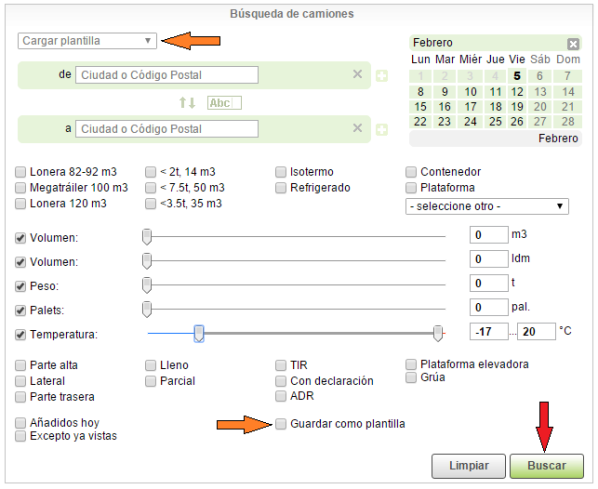
El campo "Ha Buscado" muestra los términos de búsqueda que ha utilizado recientemente. Para repetir una de estas búsquedas, haga clic en la "flecha", si es necesario, puede modificar algunos parámetros y luego hacer clic en "Buscar".
Las nuevas ofertas coincidentes con sus criterios de búsqueda y que van llegando a la base de datos son añadidas a la pestaña "Nuevo".
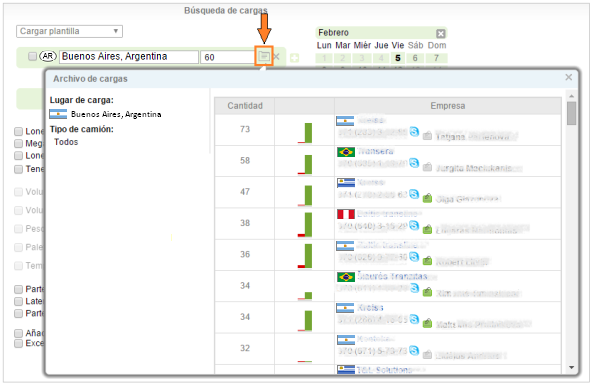
Ofertas archivadas. Si en la base de datos no hay ofertas interesantes para usted, puede ver qué empresas ofrecieron antes cargas y/o camiones en estos lugares. Para ver la lista de empresas y el número de ofertas archivadas, haga clic en el icono "Archivo" en el correspondiente punto de carga o descarga.
4.2. Filtro pequeño
Con el filtro pequeño puede ajustar rápidamente los parámetros de búsqueda, cambiando los intervalos de peso y volumen, radio de búsqueda y rápidamente seleccionar ofertas de acuerdo al tipo de carrocería y carga.
Radio - se seleccionará el radio desde el punto de carga y-o descarga donde las ofertas serán seleccionadas.
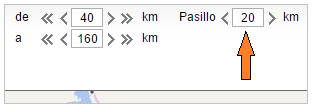
Pasillo - la búsqueda se centra en el interior del pasillo definido a los lados de la ruta principal entre los puntos de carga y descarga. El pasillo sólo se debe aplicar si está interesado en cargas adicionales, en las que debe desviarse, durante la ruta. Si no se especifica la opción de pasillo, las ofertas sugeridas serán las que se encuentran estrictamente en la ruta.

4.3. Acciones sobre las propuestas de carga/transporte
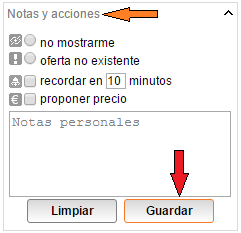
Puede gestionar las búsquedas de ofertas de cargas/transporte en "Notas y acciones":
- No mostrarme: las ofertas marcadas no serán mostradas en la tabla de cargas/transporte.
- Oferta no existente: si has contactado con la empresa, pero la carga/transporte ofertada con los parámetros de búsqueda no corresponde con la realidad, marque "oferta no existente". Las ofertas que hayan C100recibido 2 reclamaciones por parte de diferentes usuarios serán automáticamente eliminadas de la base de datos. La valoración de los usuarios será disminuida si el usuario no eliminó la publicación cuando esta ya no estaba disponible o haya publicado una oferta no válida.
- Oferta favorita: para añadir una oferta que quieres seguir como "Favorita", haga clic en "Favoritos".
- Recordarme en "X" minutos: si desea que pasado un tiempo el sistema le recuerde sobre esta oferta (por ejemplo, para llamar al propietario en 10 minutos), puede seleccionar esta casilla. Después del tiempo especificado, recibirá un mensaje con el recordatorio.
- Notas personales: si necesita dejar un comentario sobre la oferta, que sólo verá usted.
- Dar un precio en una oferta: para indicar un precio en una oferta de carga, haga clic en "Solicitud de precio" y luego en "proponer precio". A continuación seleccione la moneda y el montante.
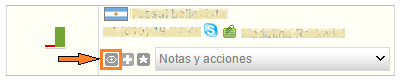
- Oferta vista: para marcar una oferta de carga o transporte como vista, haga clic en el icono del "ojo".
4.4. Buscar cargas/transportes en el mapa
Puede buscar las ofertas de cargas y transportes en el mapa.
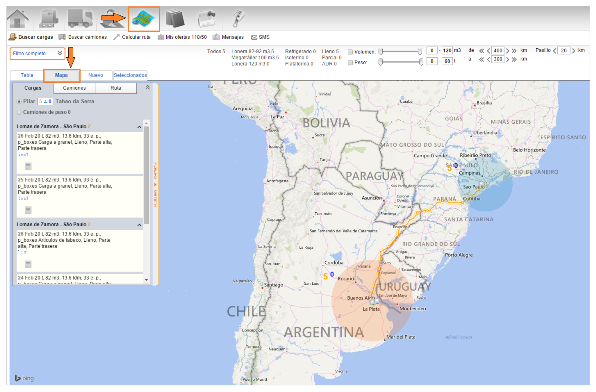
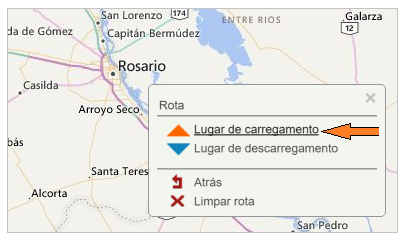
Para ajustar el punto de carga, mueva el cursor del mouse al punto que desea cargar en el mapa, haga clic en el botón derecho y seleccione "Lugar de carga" en el menú que se mostrará.
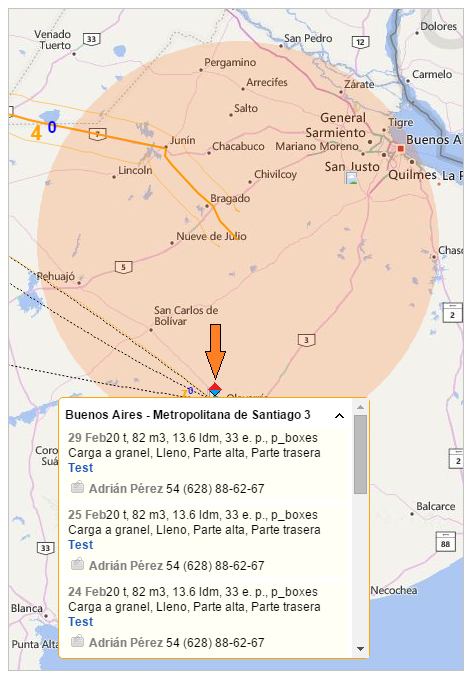
Después de seleccionar el punto de carga se mostrarán las ofertas, desde el punto de carga (círculo pequeño) al círculo grande. Puede cambiar el radio del círculo en el filtro pequeño.

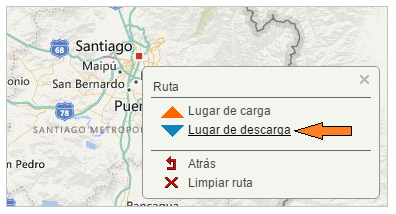
Para seleccionar el lugar de descarga, encuentre en el mapa el punto en el que desea realizar la descarga y posicione el cursor de mouse sobre dicho punto y haga clic en el botón derecho y seleccione "Lugar de descarga".
En el mapa se mostrarán los lugares de carga y descarga, el radio de carga/descarga, el pasillo en la ruta y el número de ofertas encontradas. Para ver la información de la oferta, ponga su mouse sobre la figura.
El pasillo sigue la ruta dada por el sistema, pero ampliando el área de barrido a la distancia indicada. Puede cambiar el ancho de pasillo en el filtro pequeño. Si no está interesado en la opción de pasillo, simplemente indique 0.
Para ver las ofertas desde un cierto punto de carga/descarga, sitúe el cursor sobre la figura de diamante (azul y roja) de carga/descarga.
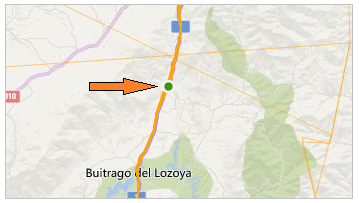
Para cambiar la ruta, mueva el mouse sobre la línea de la ruta y un punto verde aparecerá, haga clic y desplace la ruta al lugar deseado.
4.5. Cálculo de la distancia
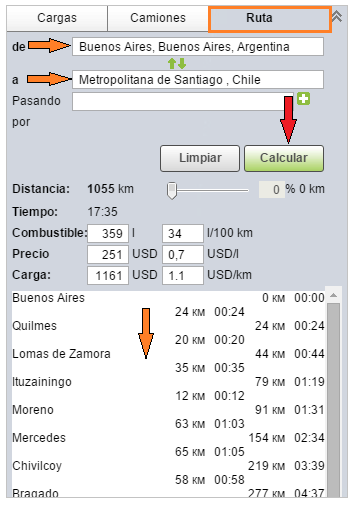
Para calcular el coste de la ruta, del transporte y la carga, haga clic en el botón "Calcular". Indique el punto de salida y de llegada de la ruta. También puede introducir una ciudad de paso en la ruta. Si no indica ninguna ciudad de paso, la ruta será calculada utilizando el camino más corto.
4.6. Publicación de una carga
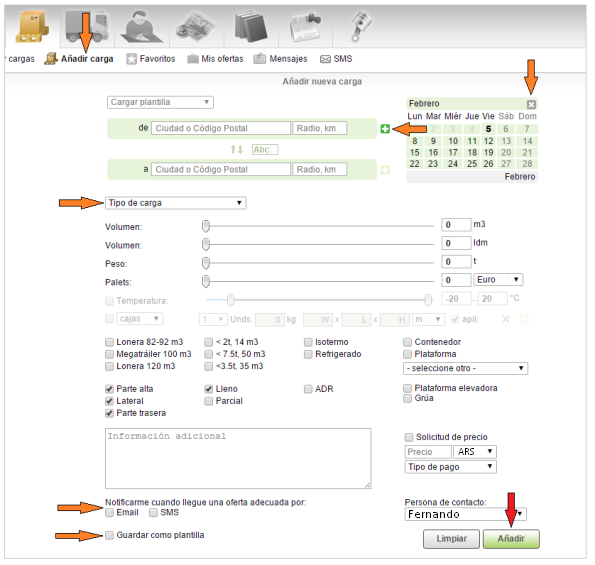
Para publicar una oferta de carga, haga clic en "Añadir carga", debajo del menú principal.
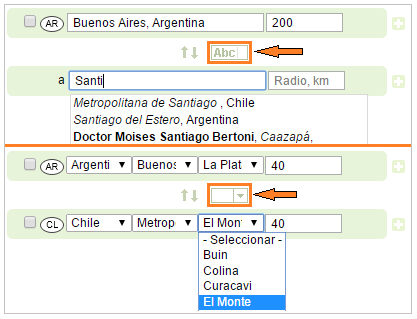
Existen dos formas de seleccionar un punto de carga/descarga. El modo "automático", introduce el nombre de la ciudad o región en "de" o "a". Después de introducir la segunda letra, el sistema le sugerirá una lista de ciudades/regiones que se encuentran en la base de datos. Puede escribir el nombre utilizando el Alfabeto Ruso o del latín.
Por ejemplo, Madrid o Мадрид.
Si no encuentra una ciudad/región específica, escoja el modo de selección "manual". Seleccione el país de carga/descarga, luego en la lista desplegable de regiones y ciudades escoja la ciudad/región más adecuada.
Si no encuentra la ciudad deseada en la lista, puede seleccionar la ciudad o región más cercana y escribir el nombre exacto del punto de carga/descarga en "Información adicional".
Si quiere añadir esta ciudad/región a la lista, por favor, contacte con el Administrador.
Si la carga y/o descarga se lleva a cabo en más de un lugar, puede añadir puntos adicionales de carga/descarga. Para añadir puntos adicionales, haga clic en el botón del símbolo "Más". La búsqueda en la base de datos se lleva a cabo desde el primer lugar de carga/descarga.
Por ejemplo,
Desde: Berlín
Puntos adicionales de carga: Dortmund
En Francia
Punto adicional de descarga: Paris
Carga de Berlín -> Bordeaux será añadida a la base de datos. Los puntos adicionales de carga/descarga Dortmund y Paris serán mostrados como carga/descarga en la información sobre la oferta, pero no será encontrarán de forma independiente en la base de datos.
Fecha de carga. Por favor, tenga en cuenta que el sistema sólo muestra ofertas de carga/transporte actuales. Por este motivo, sólo se puede poner una fecha de carga específica + un máximo de 2 días (excepto fines de semana).
Si ha indicado una fecha de carga errónea, haga clic en la "X" en la esquina superior derecha del calendario. Tipo de carga. Si no puede encontrar una definición que se ajuste a sus características de envío, seleccione "Otro" o "Normal sobre palets" y especifique el tipo de carga en el recuadro de información adicional.
Para recibir información para las cargas adecuadas a sus características a través de email o SMS, haga clic en el cuadro correspondiente.
Puede guardar la carga introducida como una plantilla. Marque la casilla "Guardar como plantilla" e introduzca el nombre de la plantilla.
Haga clic en "Añadir". Su oferta será añadida en la web.
4.7. Publicación de un transporte
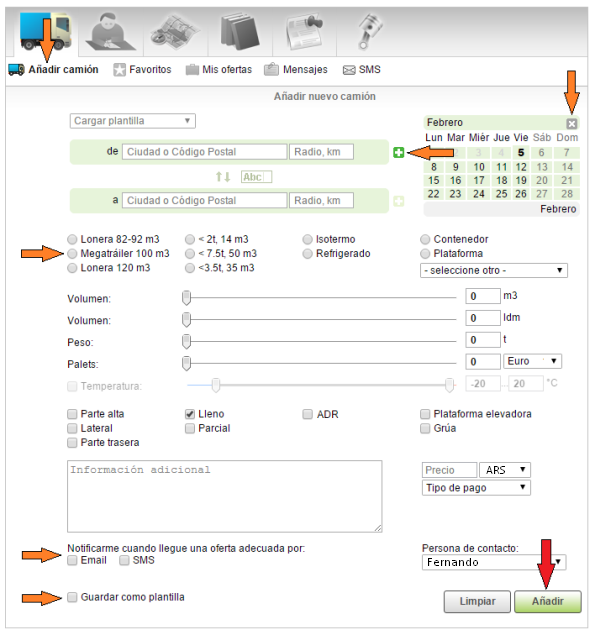
Para publicar una oferta de transporte, haga clic en el icono del "camión" que se encuentra en el menú principal y luego en "Añadir transporte".
Existen dos formas para introducir los puntos de carga/descarga. El modo "automático", introduce el nombre de la ciudad o región en "de" o "a". Después de introducir la segunda letra, el sistema le sugerirá una lista de ciudades/regiones que se encuentran en la base de datos. Puede escribir el nombre utilizando el Alfabeto Ruso o del Latín.
Por ejemplo, Madrid o Мадрид.
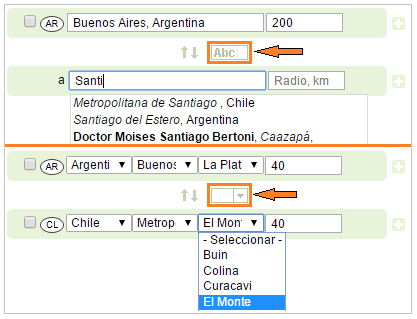
Si no encuentra una ciudad/región específica, escoja el modo de selección "manual". Seleccione el país de carga/descarga, luego en la lista desplegable de regiones y ciudades escoja la ciudad/región más adecuada.
Si quiere añadir esta ciudad/región a la lista, por favor, contacte con el Administrador.
Para introducir dos o más camiones disponibles al mismo tiempo, haga clic en el símbolo "Más". Si selecciona 2 "Desde" y 3 "A", se añadirán 6 ofertas independientes de transporte.
Por ejemplo,
Desde: Barcelona, Madrid
A: Bordeaux, Tours, Paris
Se añadirán 6 ofertas de transporte en la base de datos: Barcelona - Bordeaux, Barcelona - Tours, Barcelona - Paris, Madrid - Bordeaux, Madrid - Tours, Madrid - Paris.
Fecha de carga. Por favor, tenga en cuenta que el sistema sólo muestra ofertas de carga/transporte actuales. Por este motivo, sólo se puede poner una fecha de carga específica + un máximo de 2 días (excepto fines de semana).
Si ha indicado una fecha de carga errónea, haga clic en la "X" en la esquina superior derecha del calendario. Seleccione el tipo de carrocería de su vehículo.
Para recibir información para las cargas adecuadas a sus características a través de email o SMS, haga clic en el cuadro correspondiente.
Puede guardar la carga introducida como una plantilla. Marque la casilla "Guardar como plantilla" e introduzca el nombre de la plantilla.
Haga clic en "Añadir". Su oferta será añadida en la web.
4.8. He publicado una oferta de transporte S10 Estocolmo, Suecia (+1000 km) -> Moscú reg. Rusia (+5000 km). ¿Por qué tengo ofertas de carga desde Lituania a Estonia?
Para recibir sólo ofertas de cargas dentro de los países que ha indicado en el lugar de carga/descarga, marque el cuadro que aparece junto a la dirección introducida. Si el cuadro no está marcado, la búsqueda se realizará en función del radio que ha introducido. Es decir, a una distancia de hasta 1000 km de Estocolmo para la carga y a una distancia de hasta 5000 km de Moscú para la descarga.
4.9. Mi camión está en D01 Dresden, Alemania, pero puedo recoger cargas en regiones cercanas como PL68, PL66, PL59, CZ40, CZ47 y otras. ¿Cómo encuentro ofertas adecuadas?
Para encontrar las ofertas dentro de un radio determinado, selecciona como punto de carga D01 Dresde, Alemania y ajusta el radio de búsqueda a 150 km. Si quiere ver ofertas sólo de las regiones cercanas que pertenezcan a Alemania, haga clic para marcar el recuadro que aparece al lado de la dirección.
5. Mis ofertas
5.1. ¿Dónde puedo administrar mis ofertas?
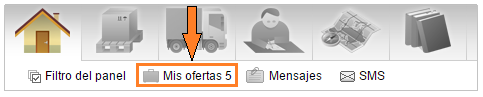
Puede administrar sus ofertas en "Mis ofertas", que se encuentra situado bajo el menú principal de la web. También, una lista de sus propuestas actuales se encontrará situada en el lado derecho del formulario, que debe completar, para introducir una oferta de carga o transporte.
5.2. ¿Cómo modificar una oferta?
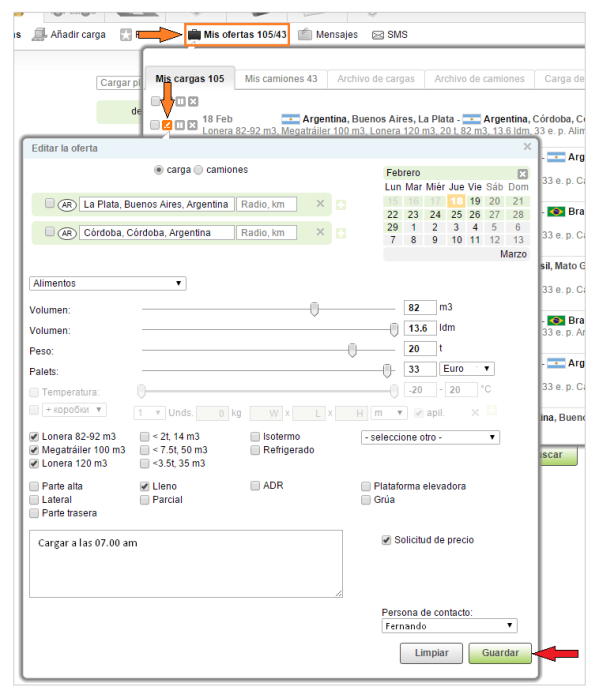
Haga clic en "Editar", introduzca los cambios que desea y haga clic en "Guardar".
5.3. ¿Cómo detener la publicación de una oferta?
Para pausar la publicación de una oferta, presione el botón "Pause". Las ofertas que están pausadas se guardan en la base de datos pero no se muestran a otros usuarios.
Para restablecer la publicación de la oferta, haga clic en el botón "Play".

5.4. ¿Cómo eliminar una oferta?
Para eliminar una oferta de la base de datos, haga clic en botón "Eliminar".
5.5. ¿Dónde buscar las ofertas adecuadas para mí?
Después de añadir su carga/transporte el sistema encontrará de forma automática aquellas ofertas adecuadas para usted.
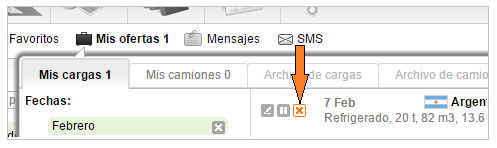
Si la web recibe una nueva oferta, que coincide con las características que busca, los números que se encuentran al lado de "Mis ofertas" se pondrán de color naranja.
Para ver las ofertas que cumplen sus requisitos, abra "Mis ofertas". El número de ofertas adecuadas se muestra en la parte derecha. El número naranja muestra la cantidad de nuevas ofertas coincidentes y el número negro, el número total de ofertas coincidentes. Para expandir la lista de coincidencias, haga clic en la flecha.
5.6. ¿Puede otro manager de la empresa detener o eliminar mis oferta en mi ausencia?
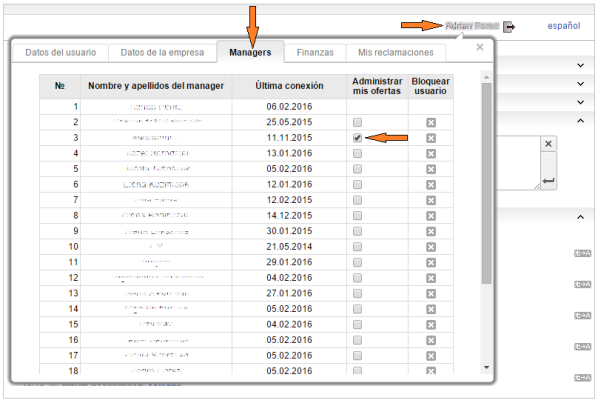
Puede seleccionar los managers quienes puedan detener o eliminar sus ofertas si no puede hacerlo usted mismo.
Para seleccionar los managers quienes puedan controlar sus ofertas, haga clic en su nombre en la esquina superior derecha de la web, vaya a la pestaña "Managers" y selecciones las personas que podrán administrar sus ofertas.
6. Mensajes
6.1. ¿Qué es eso de "Mensajes"?
Los usuarios de la web pueden enviarse mensajes entre sí mediante mensajería instantánea. Puede encontrar todos sus mensajes y conversaciones en la sección de "Mensajes", que está localizada bajo el menú principal.
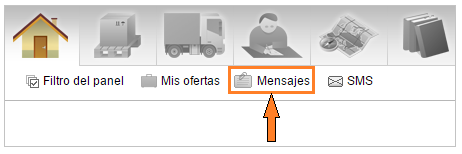
También recibirá en "Mensajes" los enviados por la web como:
- ofertas no existentes,
- solicitudes de amistad,
- solicitudes de nuevo manager en su empresa,
- recordatorio de ofertas,
- reportes de facturas no pagadas.
Para enviar un mensaje a un usuario, haga clic en el icono 39.2 que aparece junto al nombre, escriba su mensaje y haga clic en la "Flecha".
7. SMS
7.1. ¿Cómo enviar un mensaje SMS desde la web?
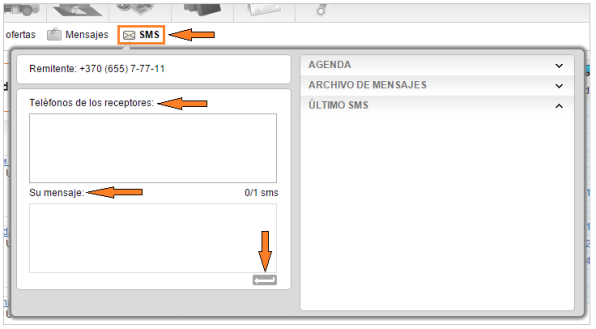
Para enviar un SMS, introduzca al menos un número de teléfono del destinatario (puede introducir varios), escriba su mensaje y presione la "Flecha".
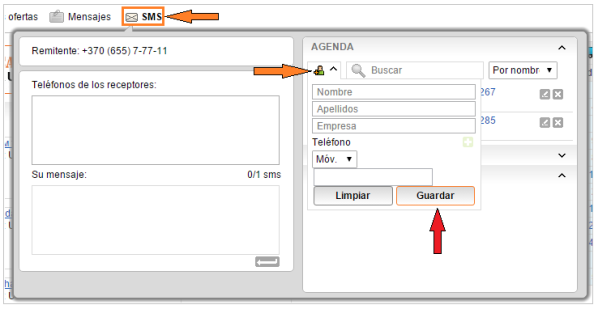
Puede añadir los números de sus amigos, compañeros de trabajo, conductores, etc. a la agenda telefónica. Haga clic en el icono 40.1, introduzca la información de contacto y pulse "Guardar".
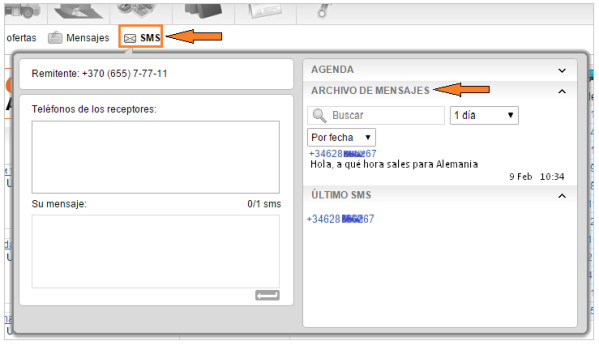
El archivo mostrará los SMS enviados durante el día, una semana o un mes. En "Últimos SMS" mostrará los 10 mensajes más recientes. Para enviar un nuevo mensaje, haga clic en el número de teléfono.
8. Muro
8.1. ¿Qué es eso del Muro?
El muro: es una herramienta de comunicación, muy adecuada, para estar en contacto con aquellos usuarios que ha añadido como "Amigos". La función de "Añadir amigo" es muy similar a la que utilizamos hoy en día en las redes sociales. Es ideal para poder conocer rápidamente las ofertas de las empresas con las que le gustaría trabajar y mantener una buena relación de negocios.
Compañeros: son aquellos "amigos" que trabajan en una empresa.
8.2. ¿Cómo añadir un manager a "Amigos"?
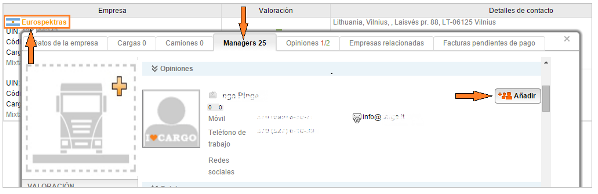
Para añadir a un manager a "Amigos", haga clic en el nombre de la empresa, vaya a la pestaña de "Managers", busque el usuario que quiere añadir a amigos y haga clic en el icono de "Añadir".
Al manager que ha agregado se le enviará una invitación. Puede ver las invitaciones de otros usuarios en sus mensajes. Sólo podrá ver la lista con sus compañeros.
8.3. ¿Cómo eliminar un manager de mi lista de "Amigos"?
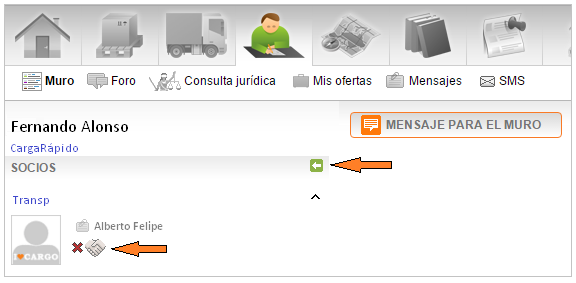
En la lista de compañeros encontrará el manager que desea eliminar de su lista de amigos. Haga clic en el icono con una cruz y el manager será eliminado de su lista.
8.4. ¿Qué mensajes se muestran en mi muro?
Automáticamente en el muro se muestran:
- sus propuestas de cargas y camiones,
- ofertas de cargas y camiones de sus amigos,
- los mensajes que sus amigos escriben en el muro,
- los mensajes que escribe en su muro.
Los mensajes que escribe en su muro sólo son visibles para sus amigos.
8.5. ¿Cómo escribir un mensaje en el muro?
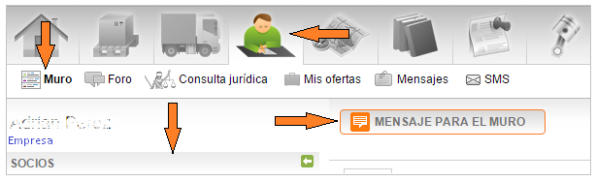
Para escribir un mensaje en el muro, haga clic en "Mensaje para el muro".
Si el sistema reconoce el mensaje como una oferta de carga/transporte, su oferta será añadida a la base de datos después de 15 minutos.
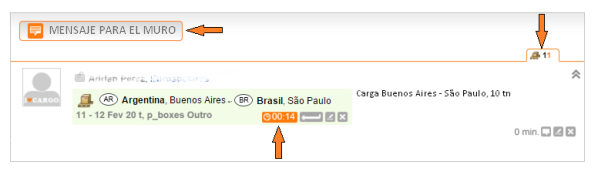
Puede añadir inmediatamente a la base de datos una carga/transporte. Para hacer esto, haga clic en "Publicar oferta". También, puede ajustar el tiempo después del cual su oferta será añadida a la base de datos. Para cambiar el tiempo, haga clic en el cronómetro y ajuste el tiempo deseado. Si no quiere compartir la publicación de la oferta en la base de datos, desmarque el cronómetro.
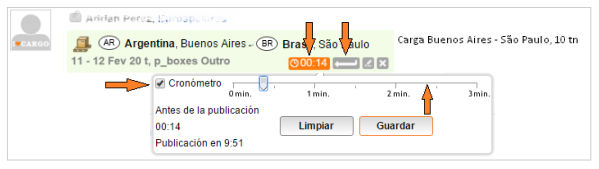
Para editar o eliminar las ofertas del muro, haga clic en "Editar" o "Eliminar".

Para comentar en un mensaje del muro, haga clic en el icono de "Comentario".
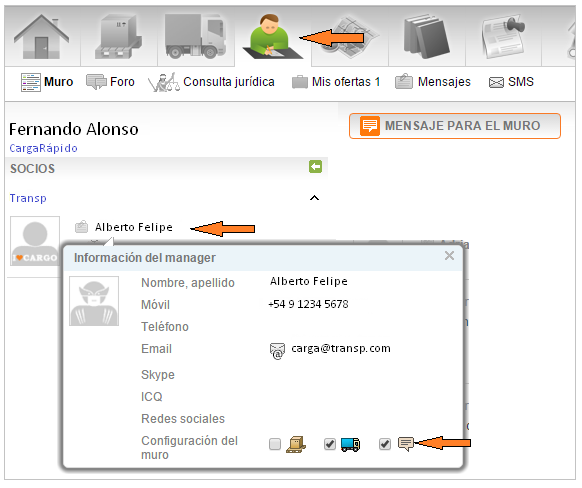
8.6. ¿Puedo configurar las personas de las que deseo recibir sus mensajes?
Para seleccionar el tipo de mensaje de sus amigos que quiere ver, utilice los ajustes del muro. Para hacer esto, haga clic en el nombre del usuario y marque o desmarque el recuadro correspondiente.
9. Catálogo
9.1. ¿Cómo encontrar una empresa en el catálogo?
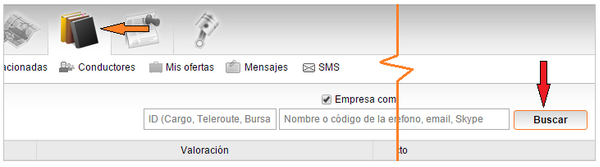
Para encontrar en el catálogo una empresa en la que esté interesado, vaya a "Catálogo" en el menú de la parte superior, introduzca los datos que conoce de la empresa que desea encontrar y haga clic en "Buscar".
9.2. ¿Cuál es la valoración de la empresa?
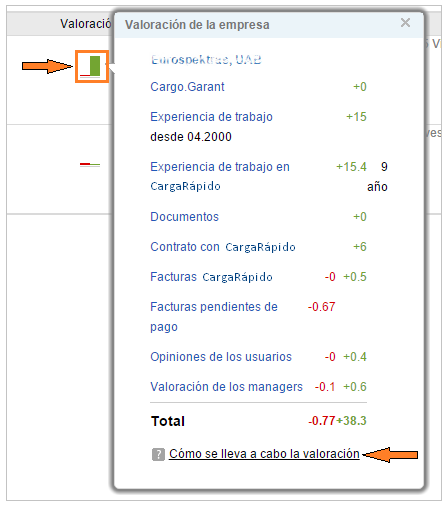
Valoración de la empresa: se trata de una evaluación de la fiabilidad y solvencia de la empresa. La valoración se calcula en función de la puntualidad en los pagos (incluidos los pagos por la utilización de los servicios de la web), experiencia de la empresa, tiempo de trabajo con nosotros, provisión de documentos, comentarios, etc.
9.3. ¿Dónde puedo encontrar la valoración de una empresa?
Para ver la valoración, abra la información de la empresa. Para ello haga clic en el nombre de la empresa (en el catálogo, en la página de búsqueda de cargas/transporte, etc.)
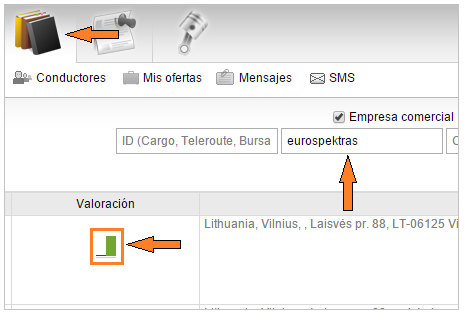
Para ver cómo se ha calculado la valoración de la empresa, haga clic en el "gráfico de la valoración".
9.4. ¿Cómo dejo un comentario sobre mi experiencia con una empresa?
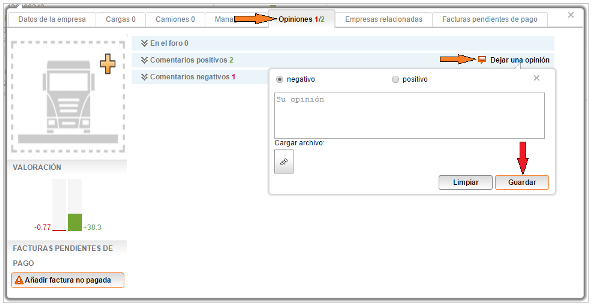
Para dejar un comentario sobre el trabajo con una empresa, haga clic en nombre de la empresa y vaya a la pestaña "Opiniones".
Seleccione el tipo de comentario y haga clic en el enlace "Dejar una opinión". En la ventana que se abrirá escriba su comentario y, si es necesario, adjunte un documento que justifique su comentario. Haga clic en "Guardar".
9.5. ¿Cómo eliminar mi comentario de la valoración de una empresa?
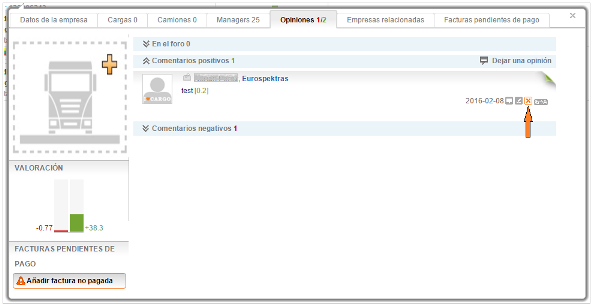
Para eliminar un comentario de la valoración, busque la empresa (por ejemplo, en el "Catálogo"). Vaya a la pestaña de "Opiniones", busque su comentario y haga clic en "Eliminar".
10. Empresas relacionadas
10.1. ¿Qué es eso de "Empresas relacionadas"?
Empresas relacionadas: una persona física o jurídica que, directa o indirectamente, tiene relación con dos o más empresas con nombres diferentes.
La divulgación de empresas relacionadas, permite a los usuarios evaluar las amenazas y oportunidades de cooperación con las empresas antes de tomar una decisión.
Se consideran empresas relacionadas aquellas que:
- utilizan el mismo personal, igual gestión y mismos propietarios,
- la información de contacto y dirección de la empresa y/o propietarios y managers son igual,
- utilizan una misma página web.
10.2. ¿Cómo puedo introducir información sobre una empresa relacionada?
Para introducir información sobre una empresa relacionada, busque la empresa (por ejemplo en el "Catálogo"), vaya a la pestaña "Empresas relacionadas" y luego haga clic en el botón "Añadir empresa". Introduzca el nombre o código de la empresa y selecciónela en la lista, a continuación pulse el botón "Añadir".
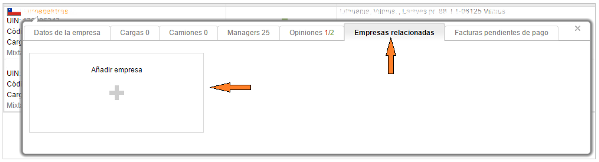
Si la empresa que busca no se muestra en la lista, haga clic en "no es un cliente del sitio, complete los datos sobre la empresa y haga clic en "Añadir".
11. Conductores temerarios
11.1. ¿Qué es la lista de conductores temerarios?
Los conductores que no pueden llevar a cabo su trabajo con responsabilidad y honestidad se añaden a esta lista de conductores.
11.2. ¿Cómo puedo añadir información en la lista de conductores temerarios?
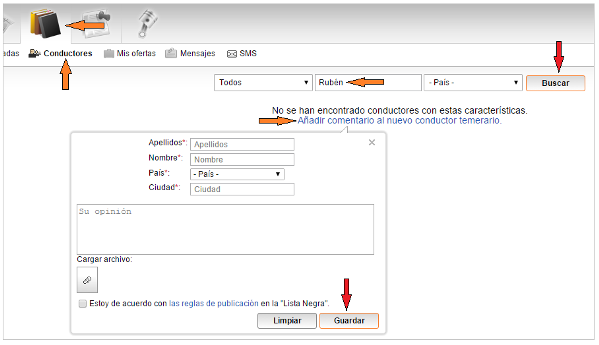
Para añadir un conductor a la lista, vaya a "Catálogo" -> "Conductores". Primero, debe asegurarse que la información sobre el conductor no ha sido añadida con anterioridad en la lista. Para ello, escriba el nombre o apellido del conductor en el cuadro de búsqueda y haga clic en "Buscar".
Si no encuentra el conductor que ha buscado, entonces haga clic en "Añadir información". Si ya existe información sobre el conductor, haga clic en el enlace "Añadir comentario".
En la ventana que se abre, escriba su comentario sobre el conductor. También puede adjuntar documentos que justifiquen su comentario. A continuación, marque la casilla indicando que está de acuerdo con las reglas de publicación en la "Lista Negra" y haga clic en "Guardar".
12. Facturas pendientes de pago
12.1. ¿Qué es eso de facturas no pagadas?
Si cualquier empresa no ha pagado las facturas por sus servicios, puede añadir sobre las facturas pendientes de pago. Esta opción, sólo está disponible para los usuarios de pago. Por cada factura no pagada, el deudor, recibe puntos negativos.
12.2. ¿Cómo puedo añadir una factura no pagada?
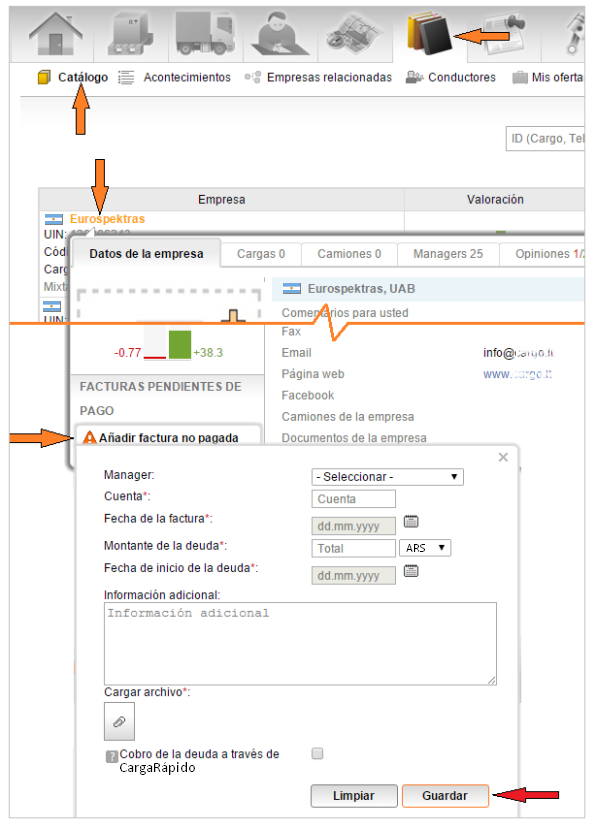
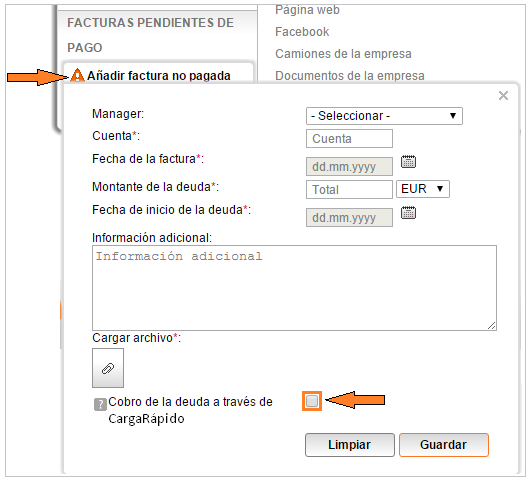
Para añadir una factura no pagada, busque la empresa (por el ejemplo, en el "Catálogo") y haga clic sobre el nombre de la empresa y luego pulse en "Añadir factura no pagada".
En la ventana que se abre, rellene los datos sobre la factura no pagada. Los campos que están marcados con un asterisco son obligatorios. También, debe adjuntar un documento donde se justifique que la factura no ha sido pagada. Una vez que ha completado todos los campos y adjuntado los documentos, haga clic en "Guardar".
12.3. ¿Dónde puedo ver las facturas pendientes de pago de mi empresa?
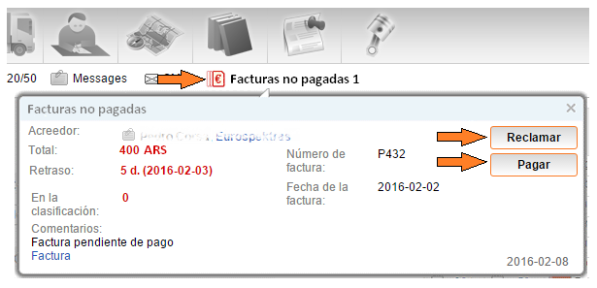
Para ver las facturas pendientes de pago de su empresa, introducir información sobre un pago o presentar una reclamación, haga clic en "Facturas pendientes de pago" en la información de la empresa.
12.4. ¿Cómo puedo reportar el pago de una factura que ha sido marcada como no pagada?
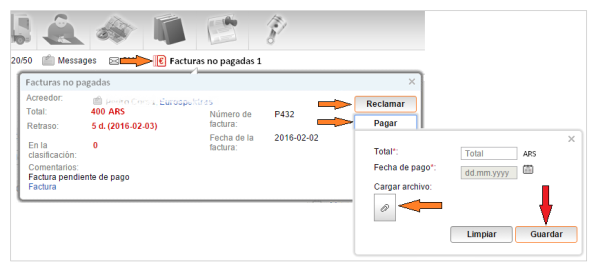
Para introducir información sobre el pago de una factura, haga clic en "Facturas pendientes de pago" y, luego, haga clic en "Pagar". Complete los detalles del pago y pulse el botón "Guardar". Los campos marcados con un asterisco son obligatorios.
12.5. ¿Cómo puedo poner una reclamación sobre una factura pendiente de pago?
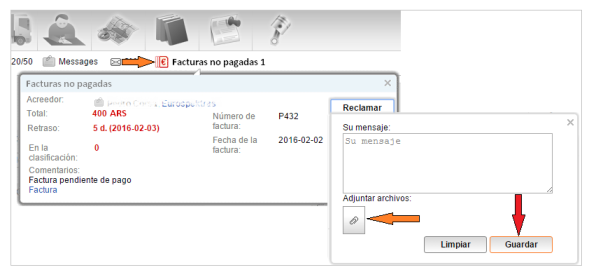
Si no está de acuerdo con una factura, puede recurrir una factura pendiente de pago. Para ello, haga clic en "Facturas pendientes de pago" y presione el botón "Reclamar". Complete el formulario y haga clic en "Guardar". La información sobre la reclamación será enviada al Administrador de la web.
12.6. ¿En qué sanción incurriré si reiteradamente presento reclamaciones sobre facturas de pago sin tener razón?
En el caso de reiteradas reclamaciones injustificadas, se desactivará la función de reclamación.
12.7. ¿Dónde puedo ver todas mis reclamaciones?
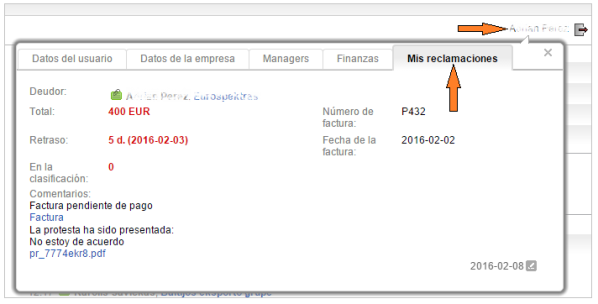
Para ver todas sus reclamaciones, haga clic en su nombre, en la esquina superior derecha de la web y seleccione la pestaña "Mis reclamaciones".
12.8. ¿Cómo puedo modificar una reclamación?
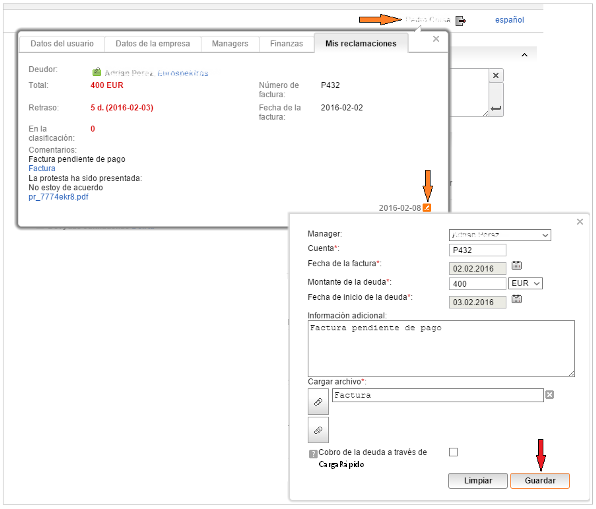
Para modificar una reclamación, haga clic en su nombre, en la esquina superior derecha de la web y seleccione la pestaña "Mis reclamaciones". Después, haga clic en "Editar".
12.9. Cuando una empresa deudora paga una factura. ¿Puedo añadir información sobre el pago?
Para añadir información sobre el pago de una factura, haga clic en su nombre, en la esquina superior derecha de la web y seleccione la pestaña "Mis reclamaciones". Haga clic en el botón "Pagar", complete la información sobre el pago y haga clic en "Guardar".
12.10. ¿Cómo puedo enviar una solicitud para el pago de una deuda?
Cuando está añadiendo la información sobre una factura no pagada, puede seleccionar la opción "Solicitar cobro de deuda". El servicio de cobro de deudas sólo está disponible para los usuarios de pago.
12.11. ¿Cómo es la operativa que siguen las "Facturas pendientes de pago"?
Después de añadir la información sobre una factura no pagada, la empresa tiene 5 días para realizar el pago o presentar una reclamación. Si pasados estos 5 días la empresa no ha respondido, se le pondrán puntos negativos (0.1% del valor de la deuda) a la empresa en su valoración. Cada 10 días que pasen sin pagar, los puntos negativos se incrementarán un 33%.
Después de realizar el pago el 10% de los puntos negativos acumulados permanecen en la valoración. 6 meses después del pago se reducen a la mitad. Y un año más tarde pasan a ser 0.
Por ejemplo, una empresa pone una queja por una deuda de 2000 euros. Si pasados 5 días desde la queja, no se ha realizado el pago o puesto una reclamación, la empresa deudora recibirá -2 puntos en su valoración. Después de 10 días, si la empresa deudora sigue sin actuar, los -2 puntos pasan a -2.66. Después del pago de la factura permanecerán en la valoración -0.26 puntos, a los 6 meses se reducen a -0,13 y tras pasar un año serán 0.
13. Ayuda para problemas técnicos
14. Boletín informativo
Si tiene algún problema con la web, por favor, contacte con el Administrador.
 +54 11 5279 9080
 +56 2 2405 3371
 +595 985 357000
 +52 558 526 4548
 english
 português
